
AV Equipment and Technical Services with Room Reservation
CETS' “Daily Schedule” is taken directly from the Event Management System (EMS). All “Additional AV” equipment (meaning, equipment not permanently installed in a room) that has been requested on any given day for a room reservation is automatically a part of that CETS “Daily Schedule” (providing the request is made a minimum of 36 hours prior to the reservation time).
Please be sure to discover the equipment that is permanently installed in the room prior to adding any additional equipment.
Room Equipment Discovery
- Login to EMS (Room Scheduler)
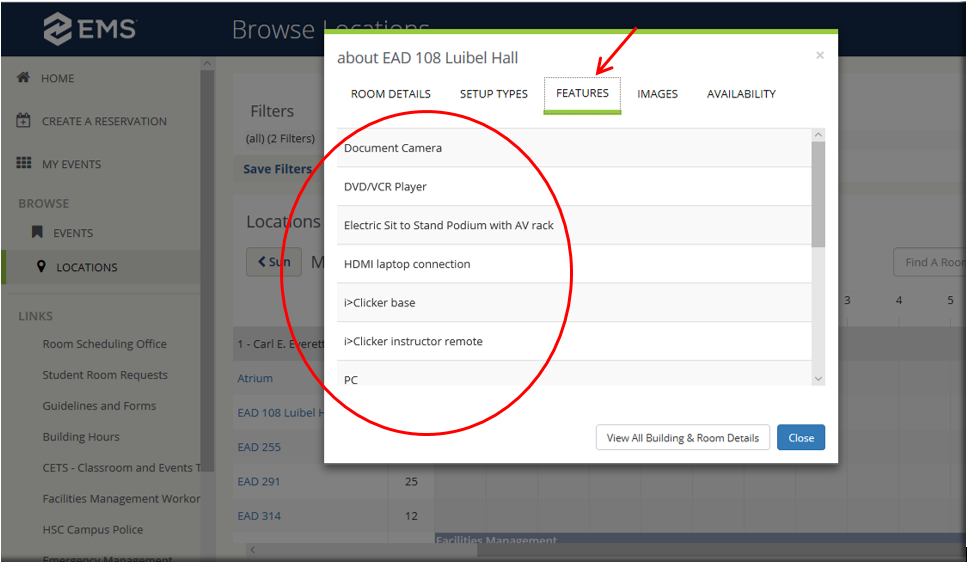
- In the left pane, select “Locations”
- Click the room number you are interested in reserving. (This can be done any place within EMS that the room number is visible.)
- Select “Features” tab, a list displays all equipment permanently in that room. Be sure to scroll down as some rooms may have an extensive equipment list
- If what you need is not on the room list of equipment, it may be added to reservation
If you have any questions please contact CETS at x2481 or email cets@unthealth.edu.
Adding Additional AV equipment to a new reservation
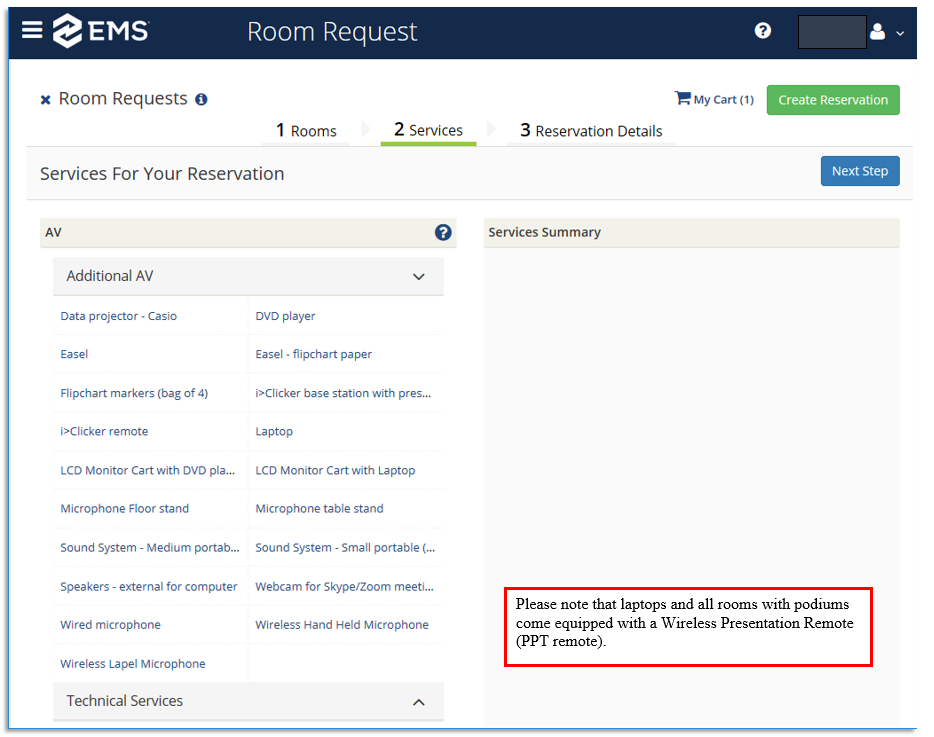
On Step 2-Services page of the Room Request form under AV heading is an option for “Additional AV." This is to request equipment that is not on the room’s Features list as shown above (i.e. additional microphones, easels, flipcharts, microphone stands, etc.).
- Select equipment to be added.
- Enter the quantity. Click “OK.”
- The item(s) you selected and the quantity should appear in the Services Summary section
- Once selections on this page are complete, click “Next Step” and complete the Reservation Request form.
Add Technical Services to a new reservation
On Step 2-Services page of the Room Request form under AV heading is an option for “Technical Services.” If requesting a Technician to be present, please note the Technician will arrive at the reservations beginning time unless a time is entered in Step 3-Reservation Details under “Did you request a CETS Tech for event start?”
- Select service to be added.
- Leave quantity set to 1. Click “OK.”
- The item you selected and the quantity should appear in the Services Summary section
- Once selections on this page are complete, click “Next Step” and complete the Reservation Request form
Any non-routine request may be emailed to CETS at cets@unthealth.edu
