
How to Use This Dashboard
How to Use This Dashboard
Dashboard Controls
The Whole Health Dashboard is designed to be interactive and easy to navigate. Here are the main ways you can explore and use the data:
Export & Save
You can export and save reports for later use in presentations, grant proposals, or community planning.
Data Loading
Please note: some reports may take a moment to load. Data is updated regularly, so the information you see may change as new updates become available.
Ways to Interact
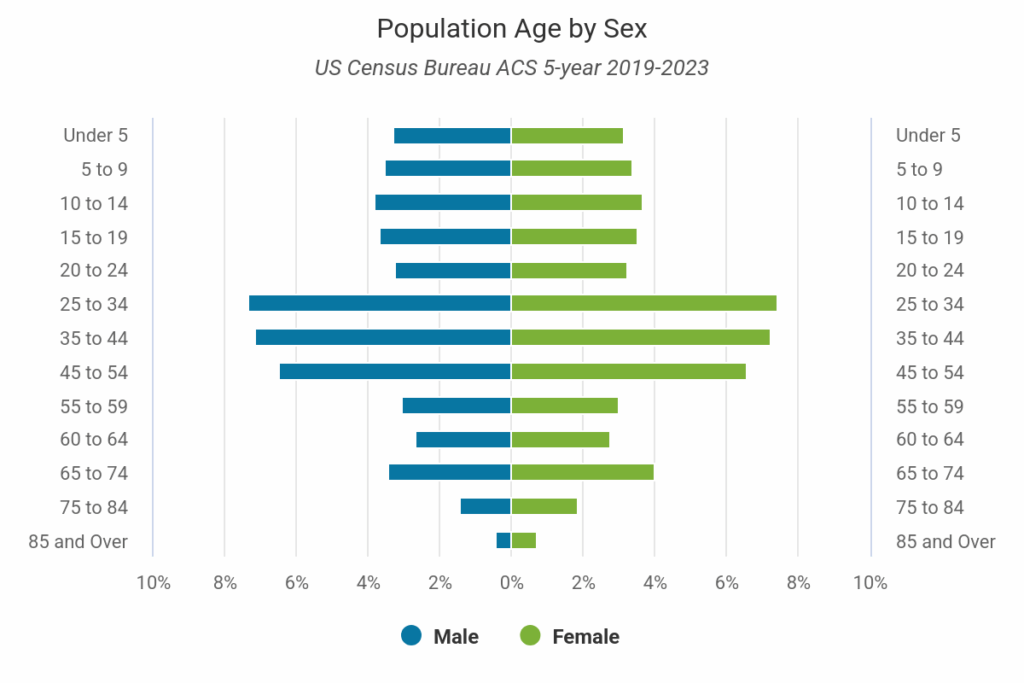
Follow the charts and graphs to explore trends and patterns in the data. Reports may be displayed as bar graphs, line graphs, or tables, allowing you to compare differences across time, places, and populations. Hover over each chart to see detailed values and insights.
To link directly to a specific section on a page, hover over a heading or visualization. Two chain links should appear. Clicking on those links will move that heading or visualization to the top of the page, and you can then copy the link in the search bar to use as a direct link to that section of a page. You can also right click and select ‘copy link address’.
You can bookmark the link, and email or share it on social media.
Customize what you see using filters powered by MySidewalk reports. You can explore data by:
-
Place (city or neighborhood)
-
County
-
Zip code
-
Census tract
Collections are also available, grouping related data together for easier comparison.
Hovering over a label on a visualization will immediately highlight the topic for focus. Sometimes it’s helpful to view a few pieces in a more direct way. Click directly on the label to turn the filter on and off. You can then export the filtered visualization at its current view.
You can bookmark the link, and email or share it on social media.