Mobile Phone Exception Request and Instructions
To request a cell phone allowance or a UNT Health-owned cell phone, please follow these instructions. The individual seeking the allowance is strongly encouraged to complete the form; however, if necessary, a delegate may do so on their behalf. Ensure both the requestor and delegate have access to the form by following steps 3, 9, and 10. Once the form is completed and all required approvals are obtained, attach it to the ePar for payroll allowance or upload it to the ServiceNow work order for a UNT Health-owned device. For further information and to finalize the request, refer to step 11. If you experience any technical difficulties, please contact the UNT Health Helpdesk.
1. Logon to SharePoint by clicking here.
2. Select “New Form” and name the form using the requestor’s first and last name and the fiscal year the allowance is needed.
3. Check the box “I am creating the form for someone else” ONLY if you are completing the form on behalf of another staff/faculty member. If this box is not selected, the requestor will not have access to the form, track the progress, or download the form.
4. Select “Submit.”

5. Find the form just created and select “Complete/View” to complete the entire form.

6. Enter the employee’s identification number or “EMPL ID” and select the search icon. The form will automatically fill in the employee name, EUID, department and supervisor. Do NOT enter the requestor’s name manually. Enter the “Mobile Phone No” and “Funding Chart String.”

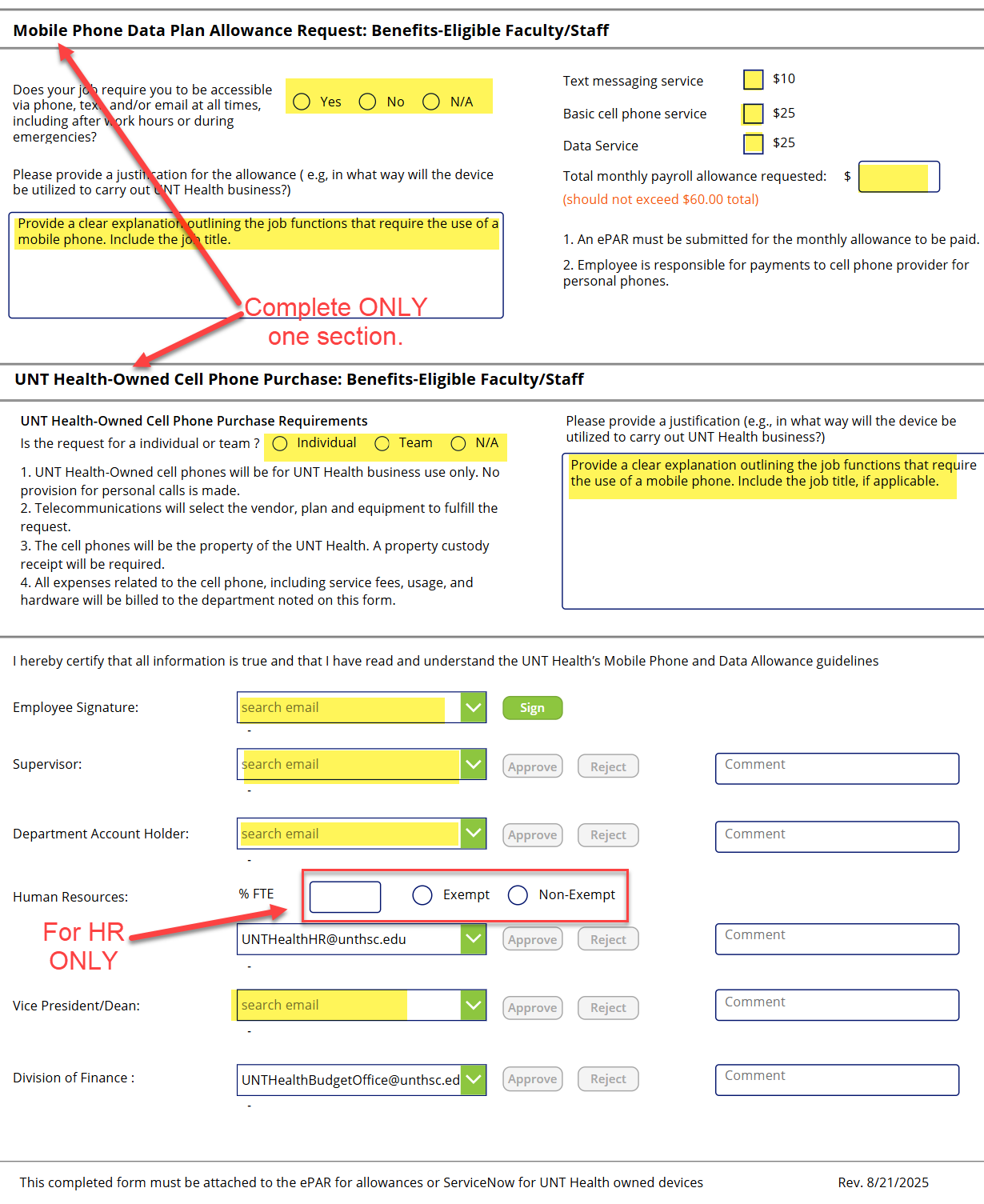
7. Continue to complete the rest of the form. Choose only ONE option: “Mobile Phone Data Plan Allowance” or “UNT Health-Owned Cell Phone.” See the image below for additional information.
a. Mobile Phone Data Plan Allowance:
i. Check the services needed.
ii. Enter the total amount of the monthly allowance.
iii. Complete the justification. Provide a clear explanation as to the business purpose
and what type of functions will be performed that require the use of the device 24
hours a day and 7 days of the week.
b. UNT Health-Owned Cell Phone:
i. Select if the request is for an “Individual” or a “Team.” This criterion may be
used as a deciding factor to consider approval.
ii. Complete the justification for the request. Include the business purpose that
warrants the use of the cell phone or service being requested.
8. Enter the email addresses for the staff/employee and ALL the approvers except for HR and the Division of Finance. Once ALL the fields are complete “Save” the form. If the person completing the form is the same as the requester, enter your email address and “Sign” the “Employee Signature” field. This step is very important as the signature will initiate the workflow approvals. If you are completing the form for someone’s, see # 9.
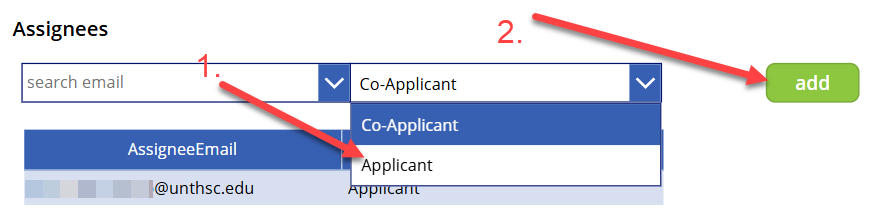
9. If you are completing the form for another person, the person requesting the allowance must be added after completing the form and selecting “Save“. To add the Applicant, select the “Back” button. In addition, you must enter your name as the co-applicant to access the form, if is not already listed.
10. Select “Delegate Form” to add the staff/faculty email address, select “Applicant,” and click “add.” This will generate an email to the requestor with a link to sign the form. After he/she signs, the approval workflows will continue, and the people listed will receive an email with the link to sign the form. If additional assistance is needed from your department administrator, enter their email address and select “Co-Applicant.” This will grant them access to view and edit the form.

11. Once all the approvers have signed, you will receive an email. Logon to SharePoint, select “Complete/View” and print the form as PDF. Follow the next steps to finalize the request:
a. For Mobile Phone Data Allowance Request – Attach the form to the ePAR.
i. Logon to myhr.unt.edu and select ePAR. Note that only selected department staff members have access to enter ePARs. Contact your department administrative staff or supervisor to complete this process.
b. For a UNT Health-Owned Cell Phone Purchase – Submit a work order in ServiceNow (click here).
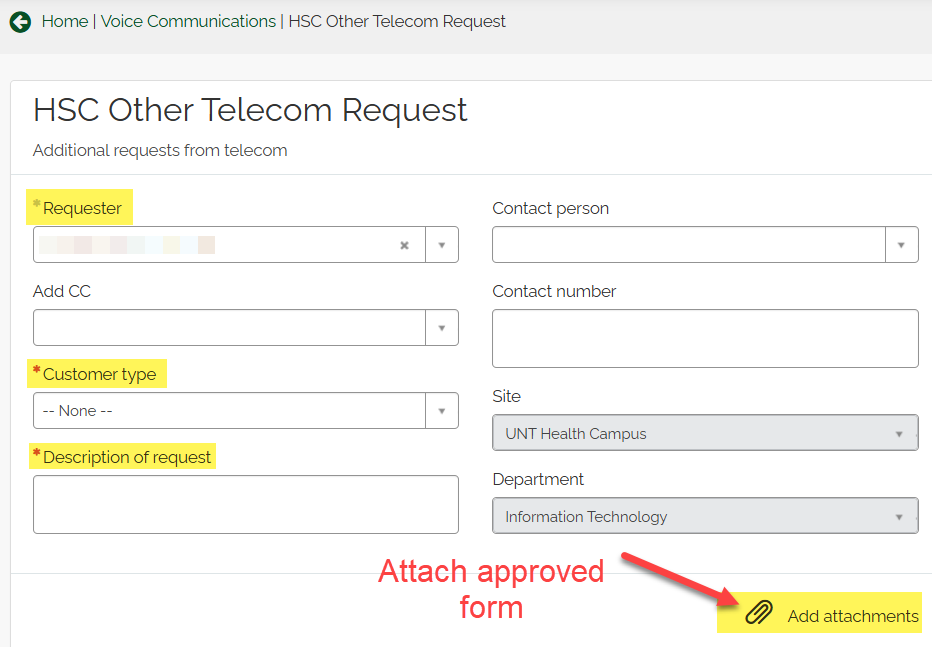
i. In ServiceNow, select “Voice Communications” and complete the “… Other Telecom Request.”
ii. Attach a PDF of the completed Mobile Phone exception request by selecting the
paperclip icon.
iii. Telecom will contact you to finalize the request.